If Honista is not working, first restart your Android phone, test your connection, force-stop Honista, and clear the app cache. If login fails, check whether your account works in the official Instagram app before changing anything else. A compatible, trusted app update may help, but third-party clients can stop working when Instagram changes its systems. Do not clear storage or uninstall until you have backed up anything important. (Sources: Google Android Help; Honista changelog; checked November 19, 2026.)
Honista is an unofficial, modified Instagram client for Android. Honista is not affiliated with Instagram or Meta. The steps below are general troubleshooting guidance based on published documentation, not a claim that every error was reproduced on every device. f you’d rather start fresh with a clean install, download the latest Honista APK from our home page.
What should you check first when Honista stops working?
Start with the least disruptive checks. Many app failures are temporary, while clearing all app data can delete local settings and sign-in information. Google’s Android Help recommends a restart and simple app checks before destructive steps.
If the newest update is what broke things, try a build from Honista old versions that matches your Android version.
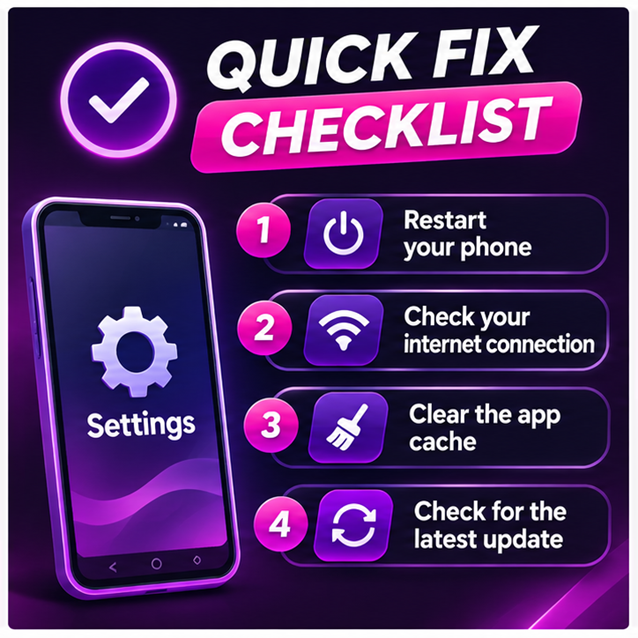
1. Restart the phone, then open Honista again.
2. Check whether other apps can load pages over Wi-Fi and mobile data.
3. Go to Settings > Apps > Honista > Force stop, then reopen it.
4. Open Settings > Apps > Honista > Storage & cache > Clear cache (labels vary by phone).
5. Check available storage, Android updates, and whether the installed Honista build matches your device.
6. Test official Instagram separately if the issue involves login, Stories, posts, or account security.
Which Honista error matches your symptoms?
The fastest fix depends on what actually fails. Use the table to identify a useful first test, then follow the detailed section below. The listed causes are possible explanations, not confirmed diagnoses.
| Problem | Possible cause | Safest first action |
| Crashes on opening | App cache or build incompatibility | Restart, force stop, clear cache |
| Login failed or endless verification | Account check or third-party login incompatibility | Test official Instagram login |
| App not installed / package conflict | Incompatible APK, signing conflict, or storage | Check file, free space and package information |
| Blank screen, feed not loading | Network or client-server mismatch | Switch networks; compare official Instagram |
| Stories or Reels not loading | Connectivity or app compatibility | Test the same content on official Instagram |
| Downloads missing or failing | Permissions, storage, save path | Check files, free space and download folder |
| Ghost Mode not working | Feature setting or unsupported behavior | Review setting; do not assume privacy |
| Notifications delayed | Android background restrictions | Review app notification and battery settings |
How can you fix Honista crashing or closing immediately?
A startup crash usually calls for app-level troubleshooting, not an Instagram password reset. Google recommends restarting, force-stopping and clearing cache for Android apps that crash. If a particular Honista release is defective, consult its developer changelog for build-specific fixes.
How do you clear Honista cache without deleting your login?
Open Android Settings, select Apps > Honista > Storage & cache, and choose Clear cache. This removes temporary cached files rather than intentionally wiping the app’s stored account and preferences. Menu labels vary by manufacturer. Avoid Clear storage or Clear data unless you accept possible loss of local settings and logins.
Phone lagging or crashing on launch? The Honista Lite vs Honista APK comparison helps you pick the build your device can handle.
What if Honista still crashes after an update?
Check the Honista changelog, and avoid installing an APK from a random mirror. The developer’s historical notes describe a targeted startup-crash fix for version 7.2 released October 20, 2023; that older fix should not be presented as the current solution for every 2026 crash. If the newest build fails, use official Instagram while investigating.
How do you fix Honista login errors or repeated verification?
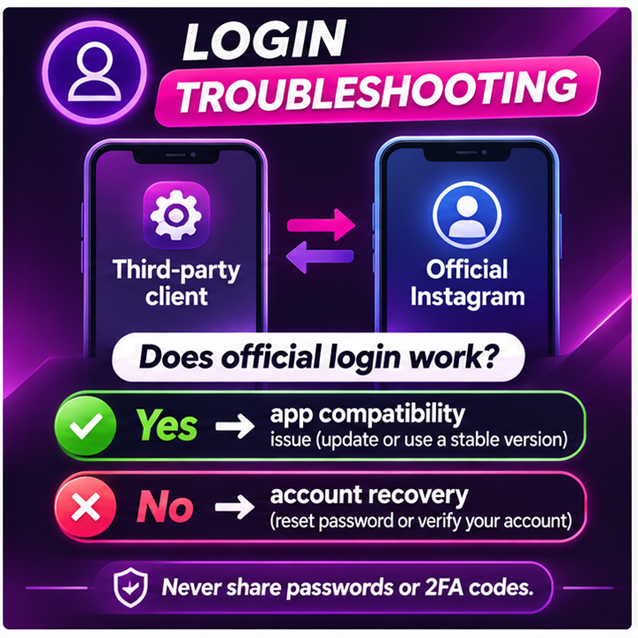
First determine whether the problem belongs to the Instagram account or the unofficial client. Sign in through the official Instagram app or instagram.com using a trusted device. If official login succeeds but Honista fails, the Honista build may be incompatible. If both fail, follow Instagram’s own account recovery prompts.
7. Stop repeated login attempts and avoid sharing verification codes.
8. Try the official Instagram app or website and note the exact error message.
9. If official login works, update or temporarily stop using Honista; do not disable two-factor authentication as a workaround.
10. If official login also fails, use Instagram’s password reset, verification, or account recovery flow.
11. If you suspect account takeover, use instagram.com/hacked and review account security after recovery.
Meta recommends two-factor authentication, up-to-date recovery contact details, and checking recognized login activity. A third-party client cannot guarantee that an account challenge will be bypassed. (Source: Meta, Keeping Instagram Safe and Secure, July 2021.)
iPhone user seeing errors or fake installers? Read Honista APK for iOS to see why no working version exists.
Why does Honista say “App Not Installed” or show a package error?
An installation failure can result from an invalid or incomplete APK, limited storage, incompatible Android support, or a signing/package conflict with an existing installation. Honista’s published version details may also specify a CPU architecture. Check these details before deleting an installed application.
Not sure if the problem is Honista or Instagram itself? See how the two apps differ in Honista vs Instagram.
What can you do before uninstalling Honista?
Confirm the package comes from a trustworthy publisher, scan the file where possible, verify free storage, and check Android compatibility. If the package signature differs from an existing app, Android may reject an in-place update. Uninstalling may erase local data, so back up important content first and do not assume a new APK will preserve the previous session.
How do you fix Honista Stories, Reels or feed not loading?
Check whether the same Story or Reel loads in official Instagram. If both apps fail, investigate the internet connection, account access, or temporary service behavior. If only Honista fails, an unofficial client compatibility issue is plausible and may not have a user-side fix.
12. Switch between Wi-Fi and mobile data to test connectivity.
13. Force stop Honista and clear only its cache.
14. Check if the same content plays in official Instagram.
15. Look for a documented compatible update; avoid repeated downloads from unverified sources.
Why are Honista photos or videos not downloading?
Downloaded media may be missing because storage is full, the save folder changed, app permissions are restricted, or the feature no longer works with a particular build. Check the Android Files app and Honista’s download options before reinstalling.
· Check available storage and the expected Downloads or Pictures folder.
· Review the Android permissions Honista requests; grant only access that the download feature actually needs.
· Try a single eligible, publicly accessible item and note whether an error appears.
· Respect creators’ rights and do not assume private or restricted content is authorized for download.
Login blocked or a security warning during install? Check is Honista APK safe before you enter your details again.
What if Honista Ghost Mode or privacy features stop working?
A Ghost Mode toggle in an unofficial app is not proof that Instagram will hide every view, read receipt, or activity event. Review the exact feature setting and developer release notes, but treat the behavior as unverified unless independently tested under the same app version. Never rely on it for sensitive privacy decisions.
When should you reinstall Honista instead of clearing cache?
Reinstallation is a later troubleshooting step, not the starting point. Google warns that uninstalling can erase app data. If a trusted, compatible release still fails after basic checks, back up recoverable settings, make sure Instagram account recovery works, and only then consider reinstalling.
How can you keep your Instagram account safer while troubleshooting?
Because Honista is an unofficial Instagram client, the safety and compatibility of a given APK cannot be assumed. Use a unique password and two-factor authentication, keep recovery email and phone details updated, and prefer official Instagram when account access is uncertain. Avoid unofficial support contacts asking for passwords, 2FA codes or payment.
Honista error messages: what do they mean?
Error wording varies across device models and builds. The table below explains what each message generally suggests and the least risky next action.
| Message or symptom | What to check |
| App not installed | Package compatibility, signing, Android version and storage |
| Keeps stopping | Restart, app cache, Android update, release notes |
| Could not refresh feed | Network and whether official Instagram also loads |
| Incorrect password / challenge required | Official Instagram login and security verification |
| Download failed | Free storage, save location and permissions |
| Notifications missing | Android notifications and background battery settings |
Frequently Asked Questions
Is Honista down today?
A single failed login or blank screen does not prove a widespread outage. Compare official Instagram access and current developer announcements before calling the issue an outage. This article does not claim live outage testing.
Can clearing Honista cache delete my photos?
Clearing cache generally removes temporary files, while clearing storage or uninstalling can delete app-specific data. Save copies of important local files first. (Source: Google Android Help.)
Will installing the latest Honista version fix every error?
No. Some problems involve account access, Android compatibility, or changes on Instagram’s side. Check the official changelog and avoid treating an update as a guaranteed fix.
Can Honista work alongside official Instagram?
The Honista publisher says coexistence can be supported, but installation behavior still depends on package identifiers and signing. A conflict should be diagnosed rather than resolved by automatically deleting official Instagram.
Is Honista available on iPhone?
Honista APK files are intended for Android. An Android APK cannot be installed natively on iOS; be cautious about websites claiming otherwise.
What should I do if my Instagram account is locked?
Use official Instagram verification and recovery tools. Do not provide passwords or codes to third-party fix services. If account compromise is suspected, start with instagram.com/hacked.
Can’t find an update in the store? That’s expected, as explained in is Honista APK on the Google Play Store.
Conclusion
Start with a restart, connection check, force stop and cache clear. Compare the same issue in official Instagram to separate account problems from third-party client problems. Update only from a trusted source, back up local information before destructive steps, and switch to official Instagram if reliable login or account security cannot be confirmed.