Updating Honista can be tricky because it uses APK files instead of an official app store. You may worry about losing your login, settings, or saved files, but installing a compatible update over the existing app usually keeps your data.
This guide explains how to update Honista, back up important data, and fix common errors. It also covers privacy risks because Honista is a third-party app not supported by Instagram or Meta. Start by downloading the newest file from our Honista APK page.
What Happens to Your Data During an Android App Update
Understanding how updates work removes most of the fear. A few simple rules decide whether your data stays or goes.
Updating Over the Old Version Keeps Data
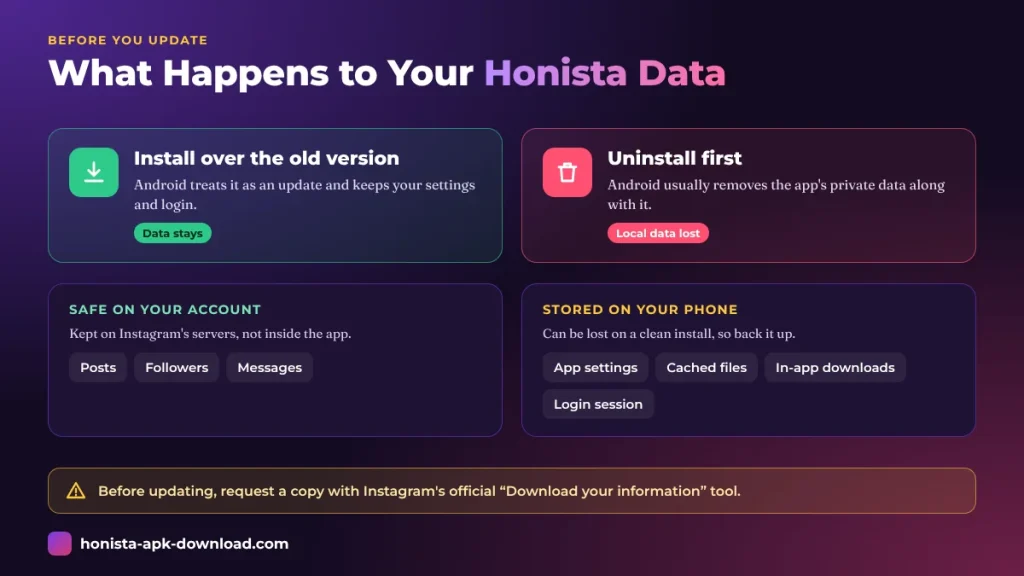
When you install a newer version of an app over the existing one, Android treats it as an update. The app keeps its stored data, such as settings and login sessions, as long as the new file is a proper upgrade for the same app.
If the update breaks something, you can roll back using our Honista old versions archive.
Uninstalling Deletes App Data
If you uninstall the app first, Android usually removes its private data. That includes saved settings and any local files stored only inside the app. This is the most common way people lose data, so avoid uninstalling unless you have no other choice and have a backup.
Why Some Updates Fail
Android only allows an update when the new file matches the installed app. An update can fail if the file is signed differently, is an older version than the one you have, or is damaged. When it fails, people are often tempted to uninstall, which is exactly when data gets lost.
What Is Stored on Your Account and What Is Stored on Your Phone
Your posts, followers and messages live on Instagram’s servers, tied to your account, not inside the app. What can be lost locally includes app settings, cached files, downloaded media saved only inside the app and your saved login session. Knowing the difference helps you decide what to back up.
Before You Update: Back Up Your Data
A few minutes of preparation protects you if something goes wrong. Treat this as a required step, not an optional one. Make sure you’re updating to the same build type, as compared in Honista Lite APK vs Honista APK.
Make Sure You Can Log In Without Honista
Confirm that you know your username, password and recovery email or phone number, and that you can log in through the official Instagram app or website. If an update logs you out, you should not be locked out of your account.
Download Your Account Data From the Official Source
Instagram offers an official data download option in its account settings, usually under the Accounts Center or the “Your activity” area. It lets you request a copy of your posts, messages and other information. Menu names change, so search the settings for “Download your information.”
Save Media Stored on Your Phone
If you downloaded photos, videos or stories using the app, copy them to your gallery, a folder you control or cloud storage. Do not leave important files only in the app’s private folder.
H3: Note Your Settings
Take screenshots of any customisation you care about, such as theme, privacy options or feature toggles. That way you can restore them quickly if the update resets something.
Check for an In-App Backup Option
Some apps include their own backup or export feature. If your version has one, use it. If you do not see one, do not assume it exists.
Back Up Your Phone
If you have important data on your phone, make a full backup using your phone’s built-in backup tool or cloud service before installing anything new.
Always verify the file before installing over your current one, covered in is Honista APK safe to use.
How to Update Honista Step by Step
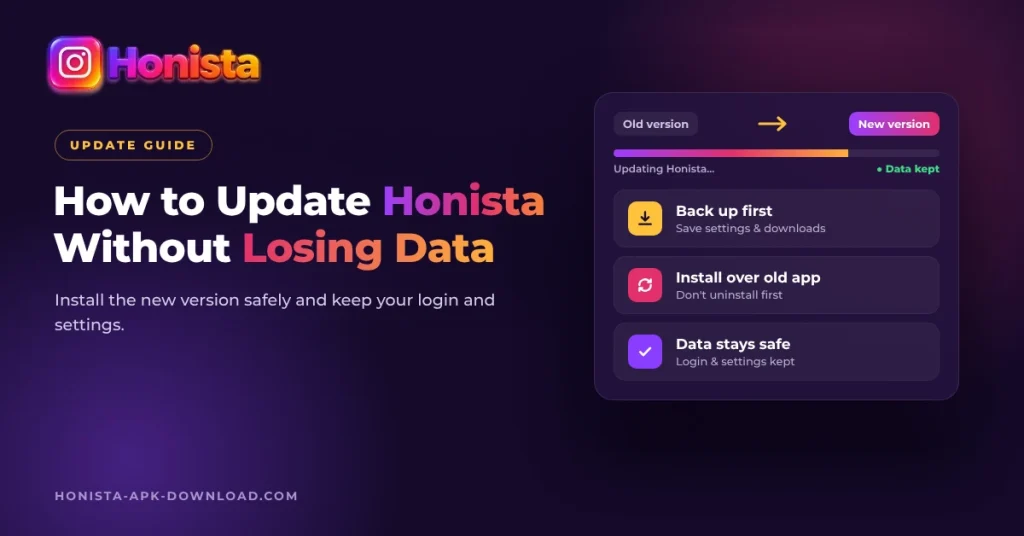
Follow these steps in order. Do not skip the backup stage, and do not uninstall the app first. There’s no automatic updater because of the reason explained in is Honista APK on the Google Play Store.
Step 1: Check Your Current Version
Open your phone’s settings, find the app list, tap Honista and look at the version number. Write it down so you can confirm the update worked and make sure you are not trying to install an older version.
Step 2: Find a Trustworthy Source
Look for the latest version from the project’s official page or a source you trust. Be careful with random download sites, pop-ups and “premium unlocked” claims. Fake APKs are a common way to spread malware.
Step 3: Check the File Before You Open It
Make sure the file name and version number match what you expected. If the file size looks very different from what the source states, or the file type is not an APK, do not install it. Scan the file with a reputable security app before opening it.
Step 4: Allow Installation From Your Browser or File Manager
Android may ask you to allow installs from the app you used to download the file, such as your browser or file manager. Allow it only for that app and only for this install, and turn the permission off again afterward.
Step 5: Install Over the Existing App
Open the APK file and tap Update or Install. Do not uninstall Honista first. Android should recognise the file as an update and keep your data.
Step 6: Open the App and Check Everything
Launch the app and check that you are still logged in, your settings look correct and the features you use are working. If you are logged out, sign in again and review your security settings.
Step 7: Clean Up
Delete the old APK file from your downloads folder so you do not install an outdated version by accident. Turn off the “install unknown apps” permission for the app you used.
Each update adds features the official app lacks, listed in Honista vs Instagram.
Fixing the “App Not Installed” Error
This is the most common problem when updating by APK. Do not panic, and do not uninstall yet. Work through these checks first.
Check That You Are Not Downgrading
If the file you downloaded is older than the version already installed, Android will block it. Compare the version numbers and download the correct one.
Check for a Signature Mismatch
If the new file comes from a different source or build than the one you installed originally, Android may refuse to update it. If this happens, the safest path is to go back to the source you used the first time. If it is unavoidable, back up everything and accept that a clean install may be needed.
Check Your Storage Space
A full phone can cause installation errors. Free up space and try again.
Check the Download
A corrupted or incomplete file can fail to install. Delete it and download it again over a stable connection.
Check Your Device Compatibility
APKs are built for different processors and Android versions. If the file does not match your device, it will not install. Read the file notes to choose the right one.
If a Clean Install Is the Only Option
If nothing else works, back up your data, note that you will lose local app data and understand that your online account itself remains safe. Uninstall only when you are ready to start fresh, then install the new version and log in again. Apple users can’t update the same way, as explained in Honista APK for iOS.
What to Check After the Update
Once the app opens, spend a minute checking a few things. This helps you catch problems early.
Login and Sessions
Confirm you are logged in to the right account. Review your logged-in devices in the official Instagram settings and log out of any session you do not recognise.
Security and Password
Turn on two-factor authentication using an authenticator app if you have not already. If you ever entered your password into an unfamiliar site or app, change it.
Permissions
Look at the permissions the app requests, such as storage, camera, microphone, contacts and location. Remove any that are not needed for the features you use.
Features and Performance
Check whether your favourite features still work. If anything seems unusual, such as sudden logouts, odd messages sent from your account or warning notices from Instagram, stop using the app and secure your account.
Risks of Using an Unofficial Instagram App
Updating safely is only part of the picture. It is important to understand the risks of using an unofficial client, so you can decide whether it is right for you.
Account Risks
Unofficial clients are not approved by Instagram, and using them may break the platform’s rules. That can lead to warnings, restrictions or even a ban. A ban can affect your account permanently.
Privacy and Security Risks
When you log in through a third-party app, you are trusting the app with your account access. A harmful or modified build could capture login details, messages or other data. If the source of the file is unclear, the risk is higher.
Lack of Support and Accountability
Unofficial apps may stop working suddenly after a platform change, and there is usually no official support team to help you recover an account.
How to Reduce the Risk
- Do not use your main or business account.
- Use a strong, unique password and two-factor authentication.
- Never share your password anywhere else.
- Download files only from sources you trust.
- Consider using the official Instagram app for important accounts.
Safer Alternatives to Consider
If your goal is a specific feature, there may be a safer way to get it. It is worth checking before you rely on an unofficial app.
Check What the Official App Offers
Instagram regularly adds features, including saving content, controlling who sees your activity and customising your feed. Check the settings of the official app first.
Use the Official Data Download
For saving your own photos, posts and messages, the official download feature is the safest route.
Use a Separate Account for Experiments
If you want to try unofficial software, use a separate test account that you can afford to lose.
Tips to Keep Future Updates Smooth
A few habits make every update less stressful. Build them into your routine.
Keep a Backup Routine
Back up your important files regularly, not just before updates. A monthly reminder is enough for most people.
Keep a Record of Versions
Write down your version number each time you update, so you can spot problems and avoid downgrades.
Update Only From Trusted Sources
Using one reliable source for every update helps avoid signature mismatches and fake files.
Stay Informed
Follow the official project’s announcements, if one exists, to learn about known problems before you install a new version.
Frequently Asked Questions
Will I lose my data if I update Honista?
Installing a newer version over the old one normally keeps your app data. You may lose data if you uninstall first or if the update fails and you do a clean install.
Should I uninstall Honista before updating?
No. Uninstalling usually deletes local app data. Update over the existing app unless you have no other choice and have a backup.
Why does it say “App not installed”?
Common causes are a version downgrade, a signature mismatch, low storage, a corrupted download or a file that does not match your device.
Are my posts and followers affected by an app update?
No. Your posts, followers and messages are stored on Instagram’s servers with your account, not inside the app.
Is Honista safe?
It is an unofficial app, and using it carries account and security risks. Download only from sources you trust, use extra security and think carefully before using your main account.
Can my account be banned for using Honista?
Using unofficial clients may violate Instagram’s rules and can lead to restrictions or a ban. There is no guarantee of safety.
Where should I download updates from?
Use the project’s official page or a source you trust. Avoid random websites and files that promise unlocked features.
Conclusion
Updating Honista without losing data comes down to a few safe habits: back up first, confirm you can log in through the official app, download the file from a trusted source and install it over the existing app instead of uninstalling. If you hit the “App not installed” error, check the version, signature, storage and file before you consider a clean install.
Remember that Honista is unofficial, so protect your account with strong security, avoid using your main account and think carefully about the risks. A careful update takes only a few minutes and can save you from losing something you care about. For more guides, keep exploring honista-apk-download.com.